Addigy is the tool BRITECITY uses to manage Macs. With it installed, we can keep your computer secure and up to date, and help you faster when something goes wrong. Installing the profile is what gives us that ability, it only takes a minute.
What is Addigy?
Addigy is BRITECITY's mobile device management (MDM) platform for macOS. Once the management profile is installed, our team can deploy required apps, push security updates, and remotely assist you if something needs attention.
Without the profile, your Mac cannot receive managed configurations or our supporting security tools. Installing it is a one-time step that takes about a minute.
Where do I download the profile?
The email that linked you to this guide also contains a link to download the profile. Click that link and the file will save to your Downloads folder.
Install the profile
Open your Downloads folder and double-click the profile file. The name will be a string of letters and numbers ending in .mobileconfig.
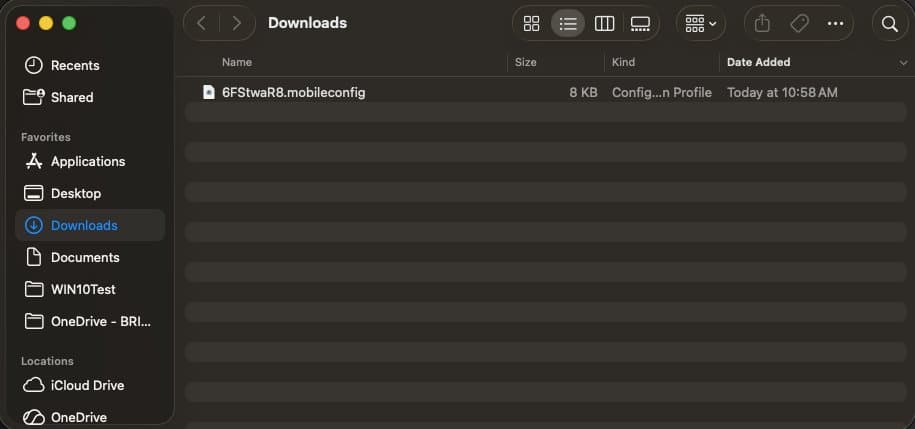
What will I see?
Step 1, Confirm the profile is ready to install
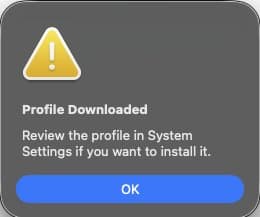
After you double-click the file, you'll see a pop-up letting you know the profile is ready to install. Click OK.
If you don't click it, the pop-up will close on its own after a few moments, that's fine, the profile is still waiting for you in System Settings.
Step 2, Open System Settings
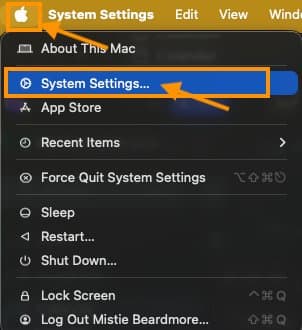
Open System Settings by clicking the Apple icon in the top-left corner of your screen and choosing System Settings.
Step 3, Go to General → Device Management
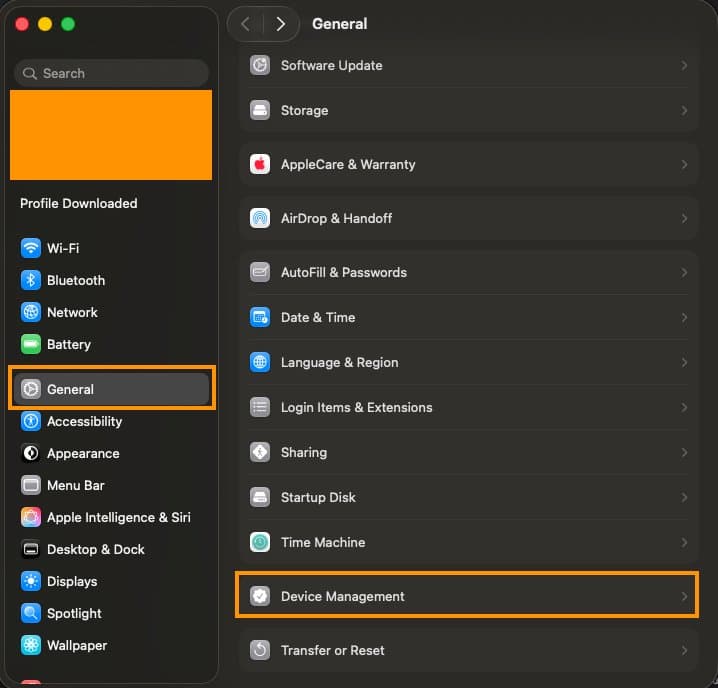
Inside System Settings:
- In the left sidebar, click General
- On the right, scroll down and click Device Management
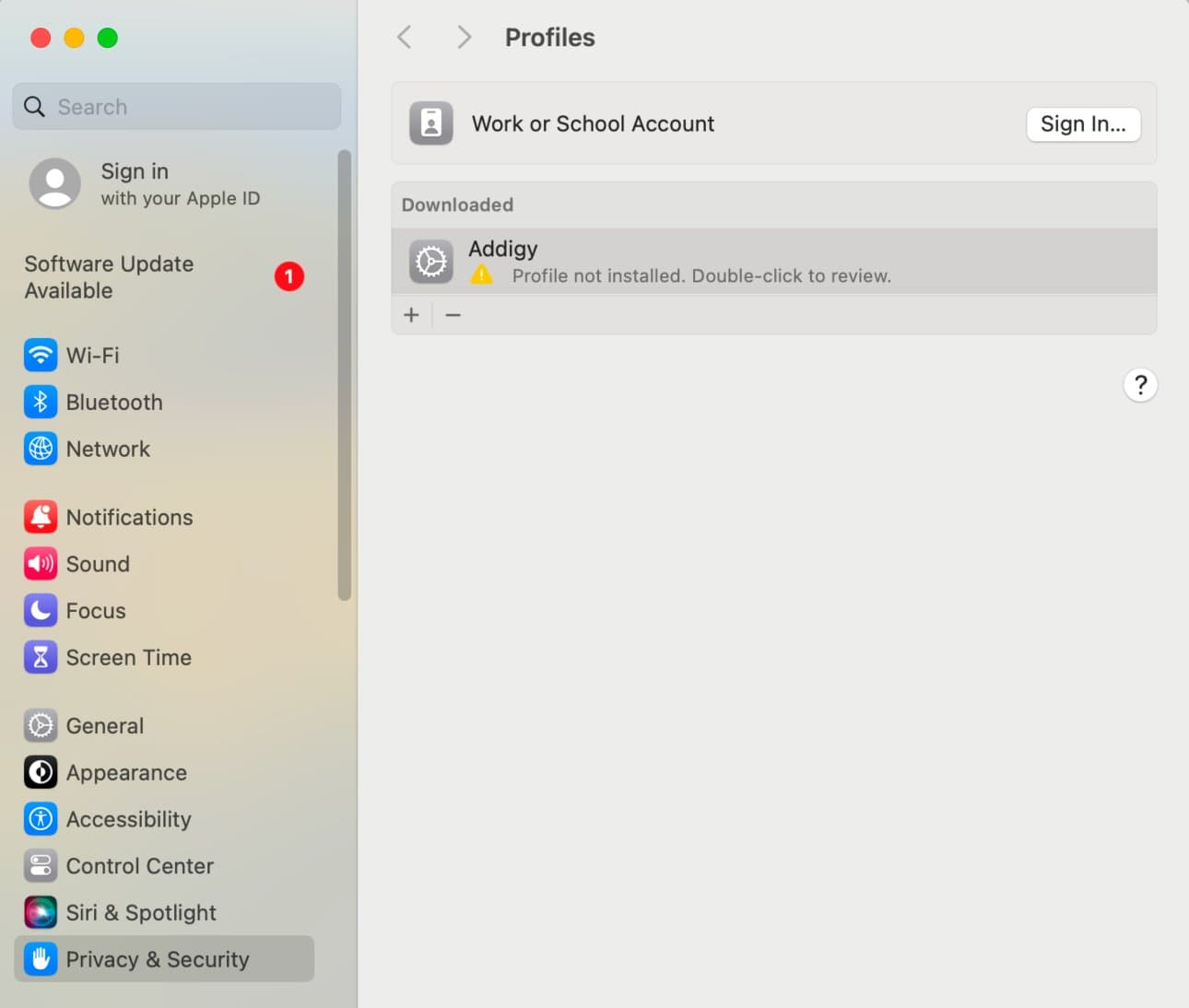
Step 4, Open the BRITECITY Support profile
You'll see the waiting profile, named BRITECITY Support. Double-click it and choose Enroll.
Step 5, Confirm enrollment
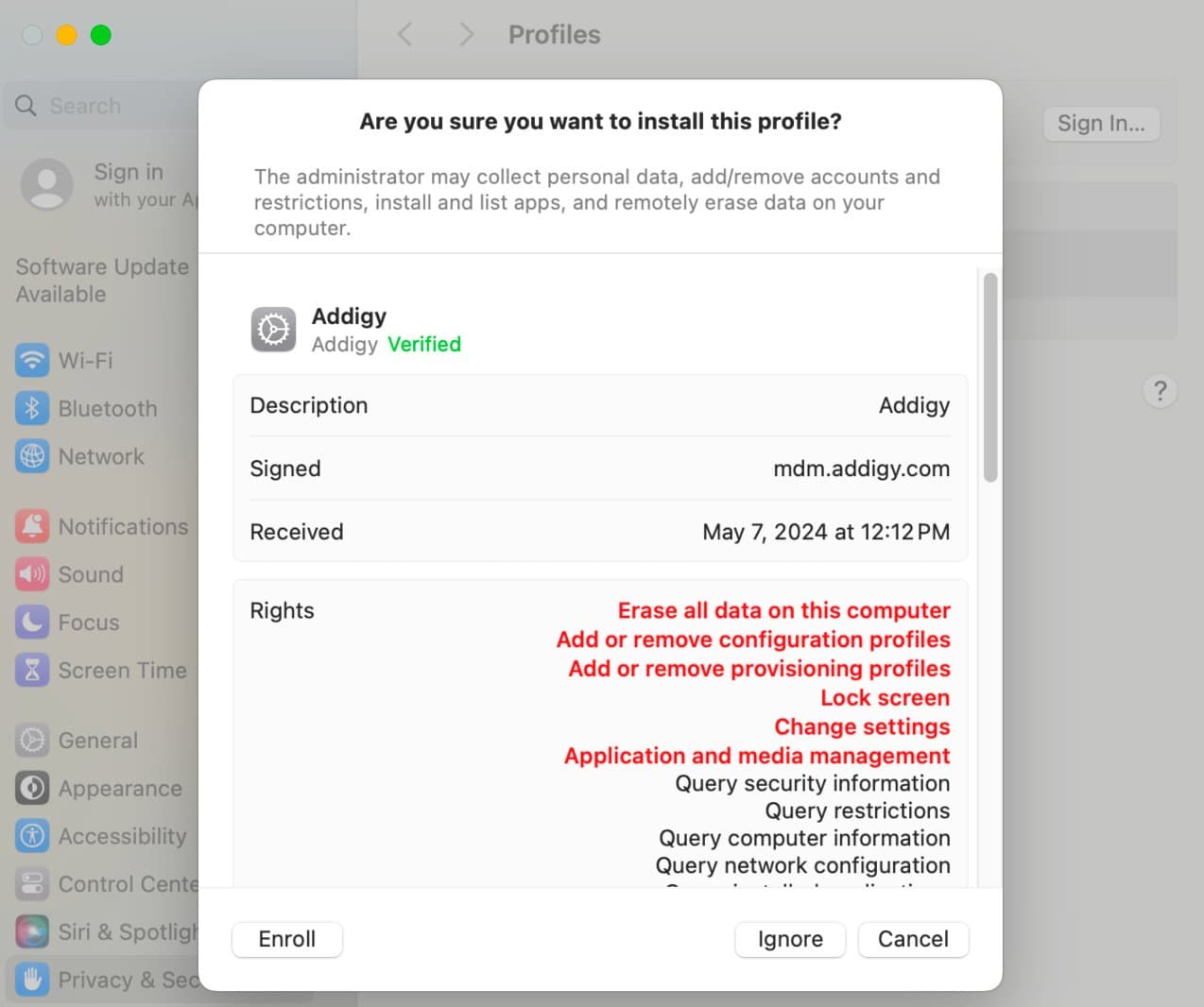
A confirmation dialog will appear showing the Addigy profile details. Click Enroll at the bottom left.
Step 6, Enter your Mac password
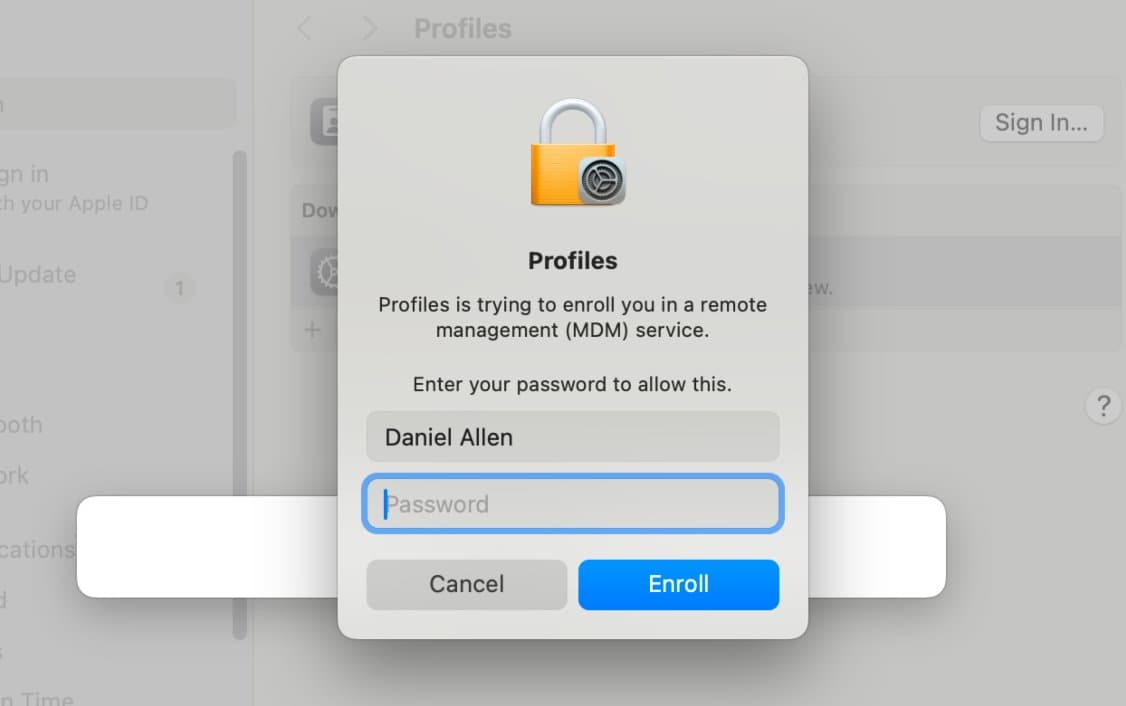
You'll be prompted to enter your Mac login password, the same one you use to log into your computer. Type it in and click Enroll.
Final steps
That's it, you're enrolled.
Over the next few minutes, you may see notifications that new apps are being installed on your Mac. This is expected. The apps relate to:
- Addigy
- ConnectWise RMM / ScreenConnect
- SentinelOne
- Cisco Umbrella
- ThreatLocker
If any of them prompt you to Allow access, please click Allow.
Quick Answers
What is Addigy and why does BRITECITY install it on my Mac?
Addigy is the management tool BRITECITY uses to support Macs. With it installed, we can keep your computer secure, deliver updates, and resolve issues faster. Installing the profile is the one-time step that grants this access.
Where do I find the profile I need to install?
The email that linked you to this guide contains the download link for the profile. Clicking the link saves a file ending in .mobileconfig to your Downloads folder. Double-click that file to begin installation.
I don’t see "Device Management" in System Settings, what now?
Device Management only appears when there is a profile waiting to be installed. Open your Downloads folder and double-click the .mobileconfig file again. The option will then appear under System Settings → General.
What apps will install after I enroll?
You will see notifications as Addigy, ConnectWise RMM / ScreenConnect, SentinelOne, Cisco Umbrella, and ThreatLocker install over the next few minutes. If any prompt asks for permission, click Allow so the tools can protect your Mac.
Who do I contact if I get stuck during enrollment?
Email help@britecity.com or call 949-243-7440 x3 and a technician will help you finish setup. Reach out anytime if something looks unexpected during the enrollment steps.